Files Converter
Professional Unity Editor tool for batch converting images, audio, and video files between multiple formats with FFmpeg support and progress tracking.
Get it on the Unity Asset Store: Files Converter
Overview
Batch-convert images, audio, and video inside the Unity Editor. Supports FFmpeg for professional audio/video conversion with progress tracking.
Key Features
Multi-Format Support
Read and write lists differ — some formats can be used as a source but are not offered as a conversion target.
| Accepted as input | Available as output | |
|---|---|---|
| Images | PNG, JPG, JPEG, BMP, TGA, TIFF, TIF, WEBP, GIF, PSD, EXR, HDR | PNG, JPG, JPEG, BMP, TGA, TIFF, WEBP, GIF |
| Audio | MP3, WAV, OGG, AIFF, AIF, FLAC, M4A, WMA, AAC | MP3, WAV, OGG, AIFF, FLAC |
| Video | MP4, AVI, MOV, MKV, WMV, FLV, WebM, 3GP, M4V, ASF, RM, RMVB | MP4, AVI, MOV, MKV, WMV, FLV, WebM, 3GP |
Workflow
- Quick conversion: Right-click context menu for single files
- Batch conversion: Dedicated batch windows for multiple files with preview thumbnails and progress tracking
- FFmpeg integration: Auto-detection, PATH support, and status verification window
- Advanced options: Format validation, transparency checks, configurable quality settings, automatic texture handling, file size estimates, optional subfolder organization
Benefits
- Save time with batch processing instead of manual conversions
- Maintain quality with professional conversion algorithms
- Organize assets with automatic subfolder creation
- Preview files before conversion with thumbnails and audio info
- Cancel operations at any time with progress tracking
How to Use
- Single file: Right-click a supported asset in the Project window and pick a target from
Convert > Image | Audio | Video > To …. Only the submenu matching the asset type is enabled. Selecting several assets converts them all. - Batch: Open
Window > Converter Editor, add files, choose the output format and options, then run the conversion. Per-file progress and a completed / failed / cancelled summary are shown as it runs. - FFmpeg: Required for audio and video. Install it and put it on
PATH; check detection withWindow > Files Converter > FFmpeg Status.
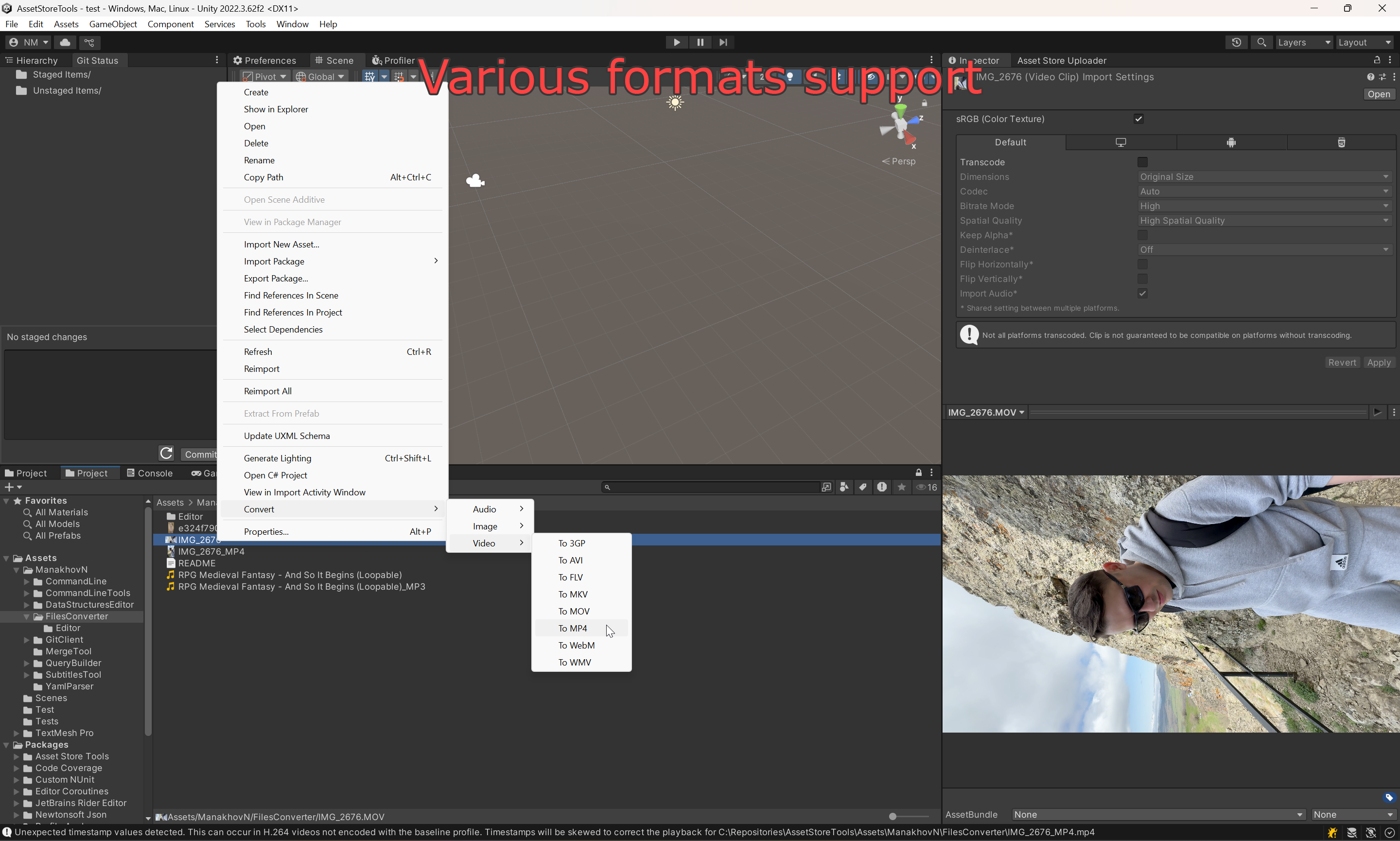
Single-file conversion from the Project window: Convert > Video > To MP4.
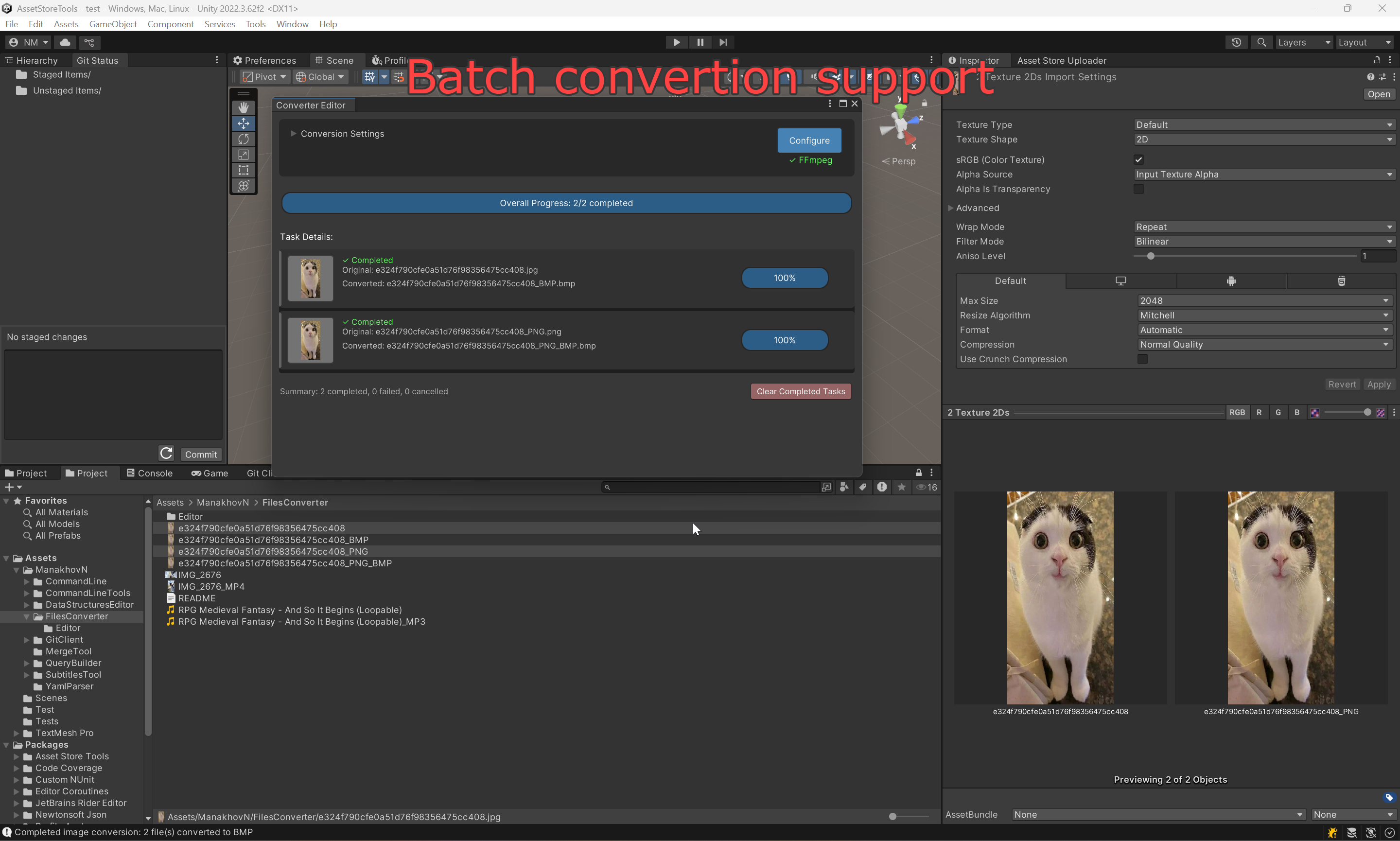
Converter Editor running a batch: per-file progress, thumbnails, and a completed/failed/cancelled summary.
Settings
Edit > Project Settings > ManakhovN > File Converter:
- Quality (0.1–1.0): Shared quality factor for the conversion.
- Custom FFmpeg Path: Override auto-detection. The panel shows the current detection status and warns when FFmpeg is missing.
- Audio Bitrate, Video Bitrate, Default Width / Height / Frame Rate: Defaults handed to FFmpeg.
- Preserve Aspect Ratio: Image resizing behaviour.
- Create Backup, Delete Originals, Output Folder Name: What happens to the source file and where the result lands.
Technical Specs
- Unity: 2020.3+
- Editor-only: No runtime overhead
- Processing: Asynchronous with progress reporting
- UI: UIElements-based interface
- Assembly: Assembly definition support
Requirements
- Unity Editor 2020.3+
- FFmpeg installation required for audio and video conversion (images may use built-in Unity conversion where applicable)
- Tested on Windows; other platforms may require FFmpeg in PATH
Tips & Best Practices
- Install FFmpeg and add it to your system PATH for full audio/video support.
- Use batch mode for large sets of assets; preview thumbnails help verify selection.
- Adjust quality presets and output formats per platform (e.g., mobile vs. desktop).
- Use subfolder organization to keep converted assets tidy.
Troubleshooting
- Conversion fails: Verify FFmpeg is installed and in PATH for audio/video; check file permissions and disk space.
- No preview: Ensure file format is supported; check Unity import settings for textures.
- Slow batch runs: Large video files take longer; use progress tracking and cancel if needed.
Support
For issues or feature requests, contact: nadirmanakhov@gmail.com
Related Tools: Command Line | Data Structures Editor | VCS Client