VCS Client (Git Client)
Powerful Git version control client integrated directly into the Unity Editor. Manage branches, view commits, resolve conflicts, and handle all Git operations without leaving Unity.
Get it on the Unity Asset Store: VCSClient — Version Control for Git Repositories
Overview
Git client built for Unity developers. Manage branches, commits, diffs, and merge conflicts without leaving the Editor.
Three windows open from the Tools > VCSClient menu:
| Window | Menu item | Purpose |
|---|---|---|
| Git Client | Tools > VCSClient > Git Client | Commit graph, history, local and remote branches |
| Git Status | Tools > VCSClient > Git Status | Staging, discarding, and committing changes |
| Git Diff Viewer | Tools > VCSClient > Git Diff Viewer | Line-by-line comparison of a single file |
A fourth window, the Conflict Resolver (three-way merge), has no menu item — it opens from Git Status when you pick a conflicted file after a failed merge.
Key Features
Branch Operations
- Create, checkout, rename, and delete branches (local and remote)
- Push, pull, and fetch with remote repository support
- Force push and force checkout when needed
- Visual branch indicators showing commit relationships
- Merge branches with automatic conflict detection
Commit Management
- Visual commit graph showing branch relationships and merge history
- Commit history browsing with author, date, and message
- View files changed in each commit
- Commit creation with message editor
- Cherry-pick commits from other branches
- Reset operations (hard, soft, mixed modes)
File Operations
- Stage and unstage individual files or directories
- View file diffs for working directory, staging area, and specific commits
- Revert changes at file or line level
- Delete files from repository
- Discard changes to restore files to last committed state
- Show files in Unity Project window
Conflict Resolution
- Automatic conflict detection during merges
- Three-way merge viewer: HEAD, incoming, and working directory versions
- Side-by-side comparison with synchronized scrolling
- Resolve by choosing "ours" or "theirs", or edit manually
- Track multiple conflicts within the same file
- Abort or continue merge operations
Git LFS Support
- Initialize Git LFS in repository
- Pull Git LFS files on demand
User Interface
- Built with Unity UI Elements
- Dark and light theme support (auto-matches Unity editor theme)
- Responsive layouts with resizable panels
- Tree views for organized file browsing
- Context menus for quick operations
- Visual commit graph with color-coded branches
- Split-pane layouts for efficient space usage
How to Use
- Open:
Tools > VCSClient > Git Client(or Git Status / Git Diff Viewer) - Repository: Automatically detects Git repository in your Unity project
- Daily workflow: Use Git Status to stage and commit; use Git Client for history and branches; use Diff Viewer to compare and revert
- Conflicts: When a merge conflicts, open the conflicted file from Git Status — the Conflict Resolver opens on it, and you choose a version or edit the result manually
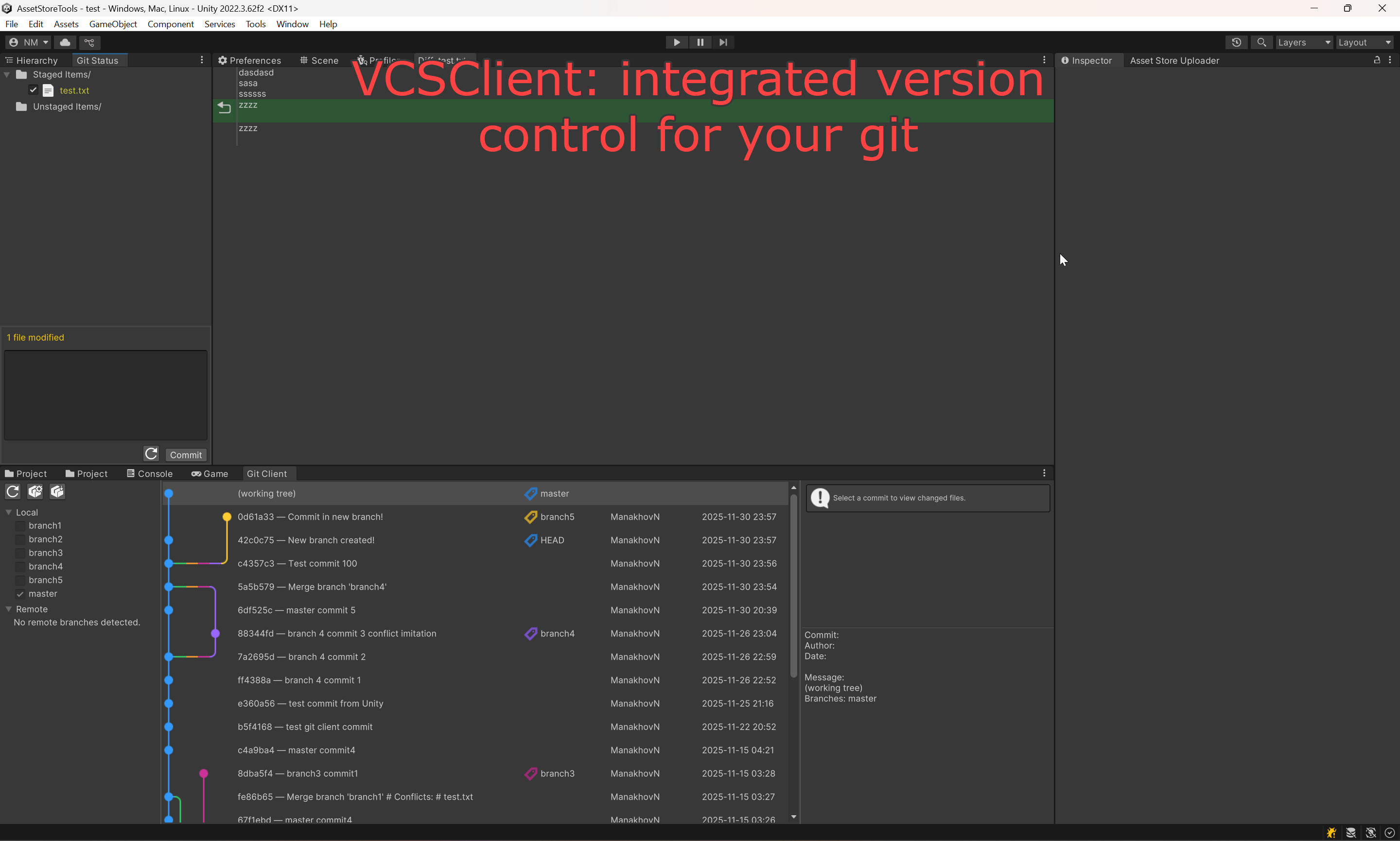
Git Client window: colour-coded commit graph, local and remote branch list, and the details pane for the selected commit.
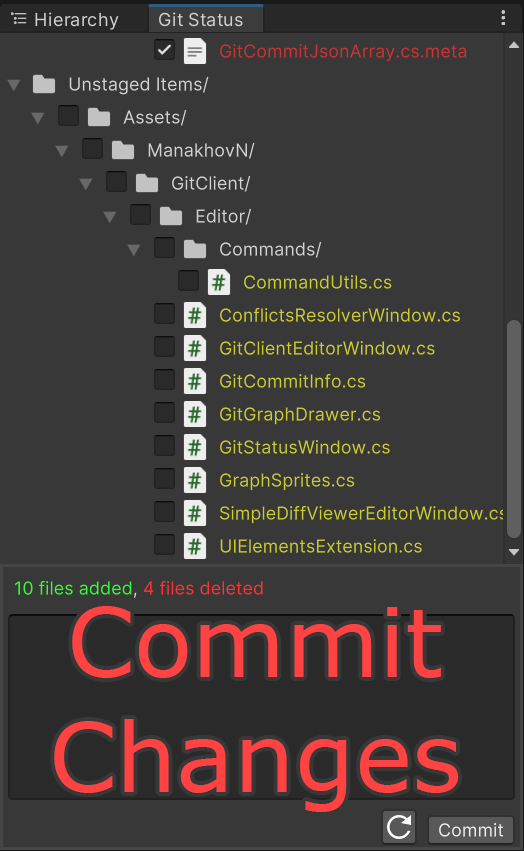
Git Status window: staged and unstaged items as a tree, with the commit message box and Commit below.
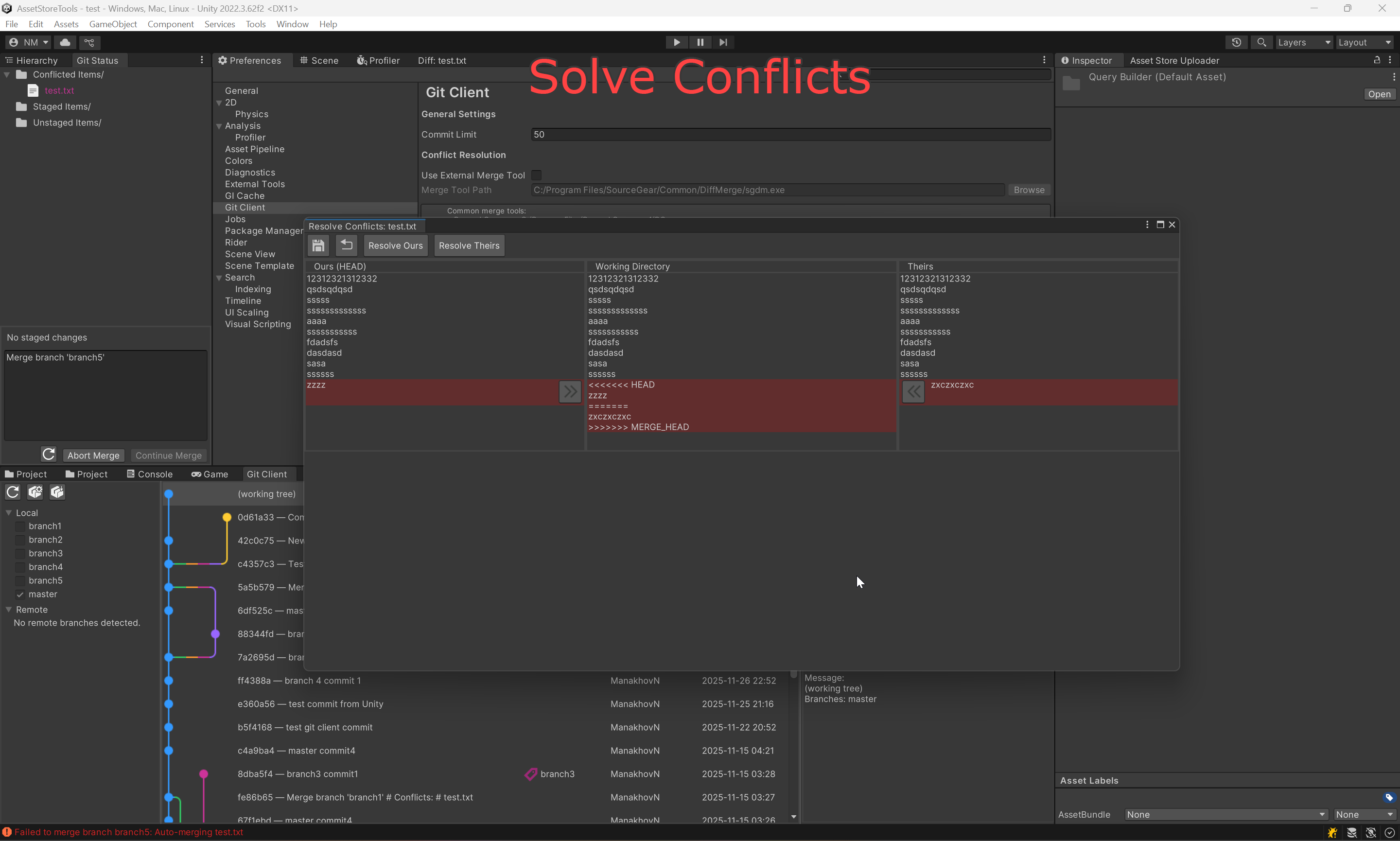
Conflict Resolver: Ours (HEAD), Working Directory, and Theirs side by side, with Resolve Ours / Resolve Theirs and per-hunk apply arrows.
Architecture
- MVC pattern for clean code organization
- Service-based Git operations
- Asynchronous command execution with error handling
- Event-driven updates when repository state changes
- Modular design with separate controllers for branches, commits, and changes
Settings
Settings live under Edit > Preferences > Git Client (user scope — they follow you across projects, not the repository):
- Commit Limit: How many commits the history loads at once. Lower it on very large repositories.
- Git Executable Path: Defaults to
git, resolved throughPATH. Point it at a specific binary if Git is not on the path. - Use External Merge Tool / Merge Tool Path: Hand conflicts to an external diff tool instead of the built-in Conflict Resolver.
Technical Details
- Unity Editor-only (no runtime overhead)
- Cross-platform: Windows, macOS, Linux
- Shells out to the system Git executable and parses its output for status, log, and diff information
- Custom Unity YAML handling for Unity-specific file types
- File icon provider for visual file type identification
Requirements
- Unity 2020.3 LTS+
- Git installed and available in
PATH(or pointed at explicitly in Preferences) - Git-initialized Unity project
Error Handling & Performance
- Comprehensive error messages for failed Git operations
- Validation of repository paths and file existence
- Timeout handling for long-running Git commands
- User-friendly dialogs for confirmations and errors
- Asynchronous loading of commit history and diffs
- Commit limit configurable in Preferences for large repositories
Support
For issues or feature requests, contact: nadirmanakhov@gmail.com
Related Tools: Command Line | Data Structures Editor | Files Converter