Command Line / Terminal
An embedded terminal inside the Unity Editor for running shell commands without leaving the IDE.
Get it on the Unity Asset Store: Editor Terminal — Command Line
Overview
- Opens from
Tools > ManakhovN > Terminal - Uses project root as working directory
- Supports Windows (
cmd.exe) and macOS/Linux (bash) - Real-time output with history navigation
- Configurable output limits and auto-scroll
Key Features (Detailed)
- Embedded Shell: Full shell access from an Editor window; respects project working directory.
- History & Shortcuts: Up/Down to navigate history, Enter to execute, Ctrl+C to interrupt processes.
- Output Management: Configurable max lines (default 500) with auto-trim to avoid memory bloat.
- Cross-Platform: Auto-selects
cmd.exeon Windows andbashon Unix-based systems. - Process Safety: Graceful termination on window close, safe interrupt via Ctrl+C.
How to Use
- Open
Tools > ManakhovN > Terminal. - Run shell commands as usual (Git, npm, dotnet, etc.).
- Use history (Up/Down) to repeat commands quickly.
- Use Ctrl+C to stop long-running processes.
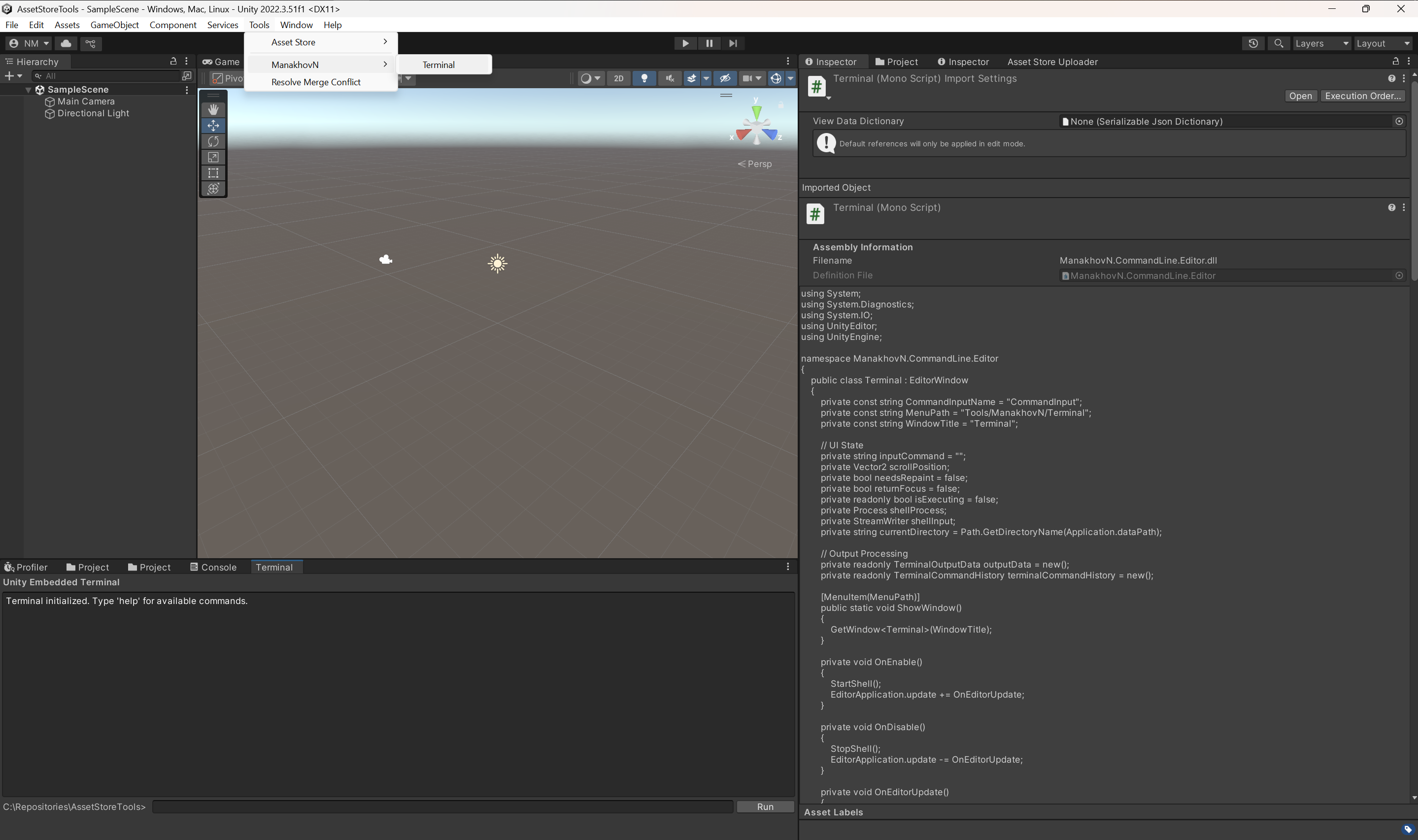
Opening the window: Tools > ManakhovN > Terminal.
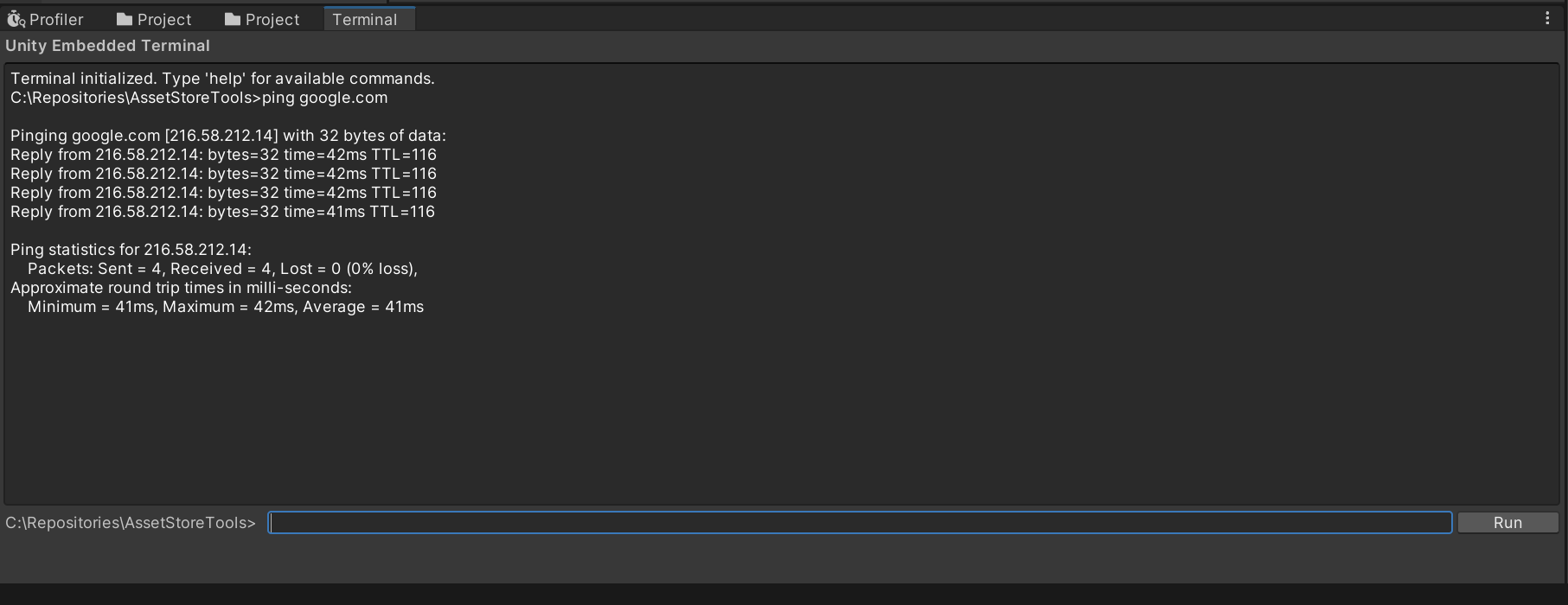
Terminal window showing a command and its output.
Common Workflows
- Git:
git status,git add .,git commit -m "msg",git push. - Build/CI scripts:
npm run build,dotnet test,gradle assemble. - File ops:
ls -la/dir,cp/copy,mv/move.
Settings
Access via Edit > Project Settings > ManakhovN > Terminal:
- Max Output Lines: Cap output to prevent editor slowdown (default 500).
- Auto Scroll to Bottom: Scroll to the latest output as it arrives.
- Reset to Defaults: Restore both values.
Changes apply immediately to newly opened Terminal windows. The shell is not configurable — it follows the platform (cmd.exe on Windows, bash elsewhere) — and terminal colours follow Unity's current Dark/Light theme automatically.
Tips & Best Practices
- Keep max output between 500–1000 lines for performance.
- Use full paths for custom tools not in PATH.
- Prefer short-running commands inside the Editor; use external terminal for heavy tasks.
Troubleshooting
- Terminal frozen: Close/reopen the Terminal window.
- Command not found: Check PATH; run with full path if needed.
- No output / truncated: Increase max output lines in settings.
- Permission errors: Verify shell permissions and working directory access.
Requirements
- Unity Editor 2020.3 LTS+
- .NET Framework 4.7.1+
- System shell available (
cmd.exeon Windows,bashon macOS/Linux)
Support
For troubleshooting and support, contact: nadirmanakhov@gmail.com
Related Tools: Data Structures Editor | Files Converter | VCS Client