Figma To Unity Importer
Imports nodes from Figma directly into Unity, turning a design frame into a uGUI hierarchy — generating layouts and text where it can, and pulling rendered raster or SVG images where it cannot.
Free and open source (MIT): github.com/ManakhovN/FigmaToUnityImporter
Unlike the other tools documented here, this one is a free side project rather than an Asset Store product. It works, and people use it, but it is deliberately rough around the edges: some Figma features have no clean uGUI equivalent, and development is occasional. Contributions and issues are welcome on GitHub.
Overview
- Converts a Figma node and its children into a uGUI hierarchy on a Canvas
- Per-node choice: generate as UI, pull a render, apply transform only, or skip
- SVG import when Unity's Vector Graphics package is installed
- Re-import onto an existing hierarchy — nodes are matched by their Figma id
- Authenticates against the Figma API via OAuth
Install
Add the package through Window > Package Manager > + > Add package from git URL:
https://github.com/ManakhovN/FigmaToUnityImporter.git?path=/Assets/FigmaImporter
Requires TextMeshPro. Install Unity's Vector Graphics package as well if you want SVG import.
Once installed, the tool appears under Window > FigmaImporter.
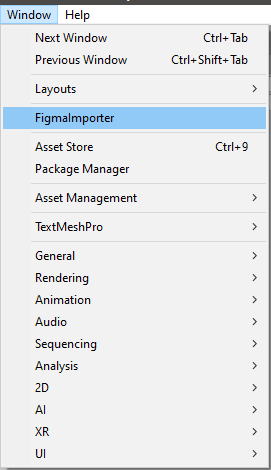
The importer opens from Window > FigmaImporter.
Connecting to Figma
Authorisation is a one-time OAuth round trip through the browser.
- Open the importer window and press OpenOauthUrl.
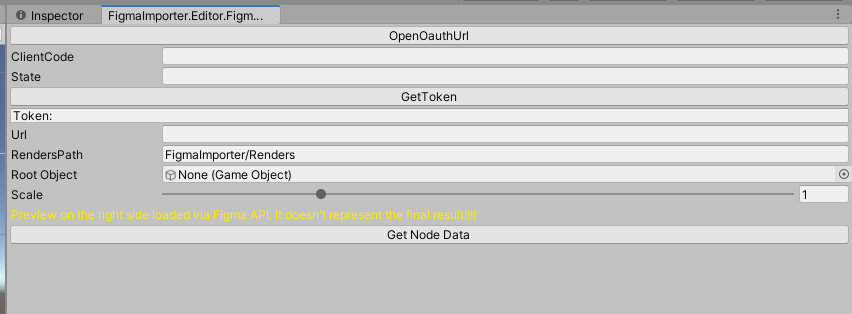
The importer window before authorisation — ClientCode, State, and Token are empty.
- Figma asks you to authorise the application. Press Allow access.
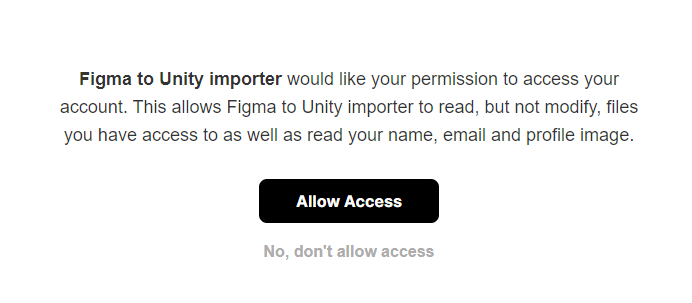
Figma's access allowance page.
- Figma redirects to a callback page that shows a ClientCode and a State. Copy both into the matching fields in the importer window, then press GetToken.
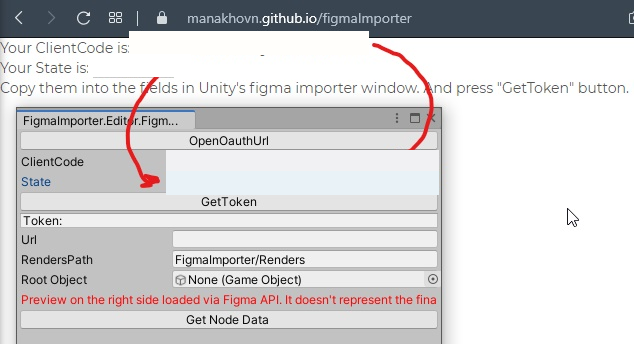
The callback page at manakhovn.github.io/figmaImporter. It only displays the values Figma passed back — nothing is stored or sent anywhere.
- If a token appears in the Token field, you are connected. If it stays empty, repeat the authorisation step.
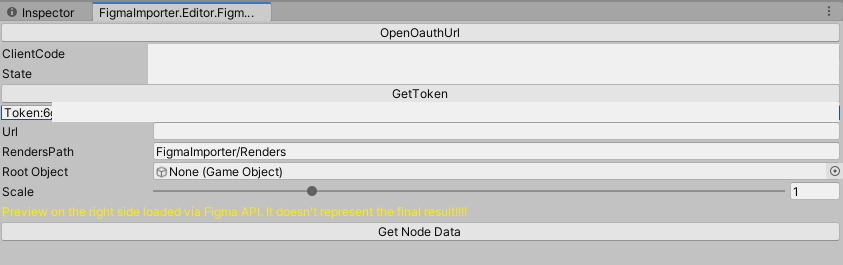
Token received — the importer can now call the Figma API.
Importing a node
- In Figma, right-click the frame you want and choose Copy/Paste > Copy link.
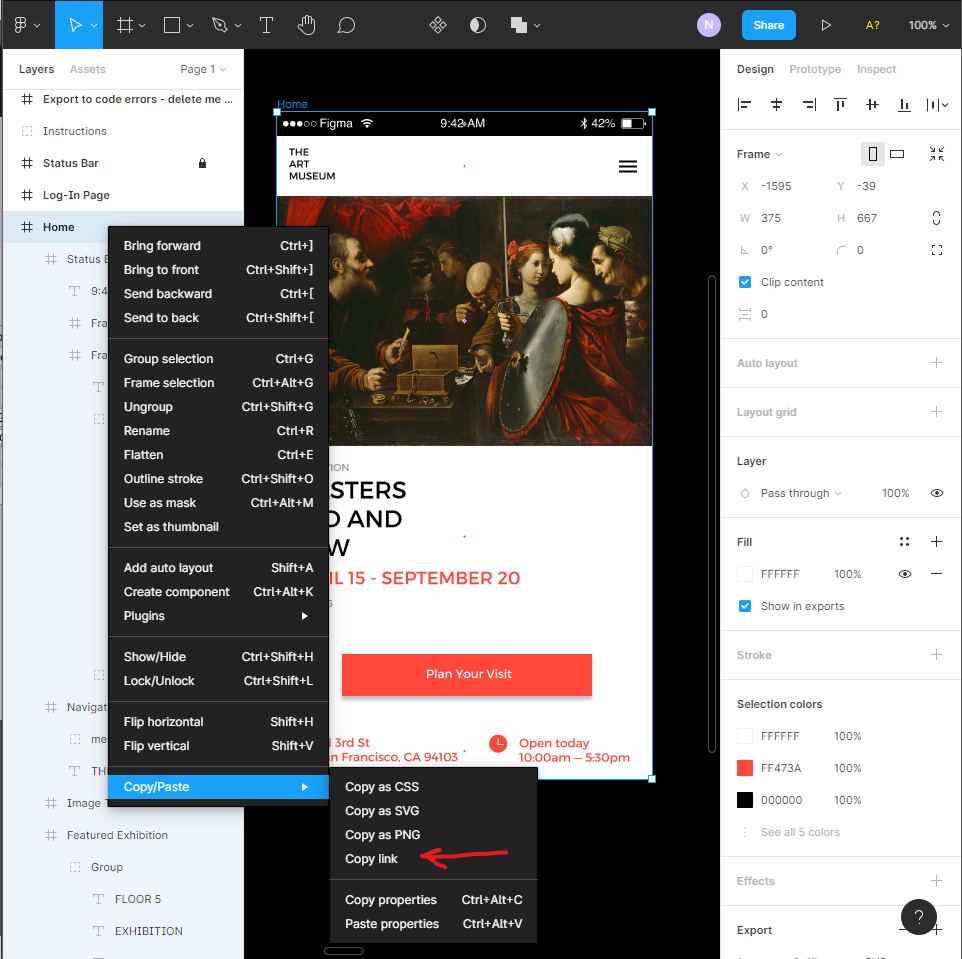
Copying the node link from Figma.
- Paste it into the Url field, assign a Canvas to Root Object, and press Get Node Data. The importer loads the node tree and picks a sensible action for every child.
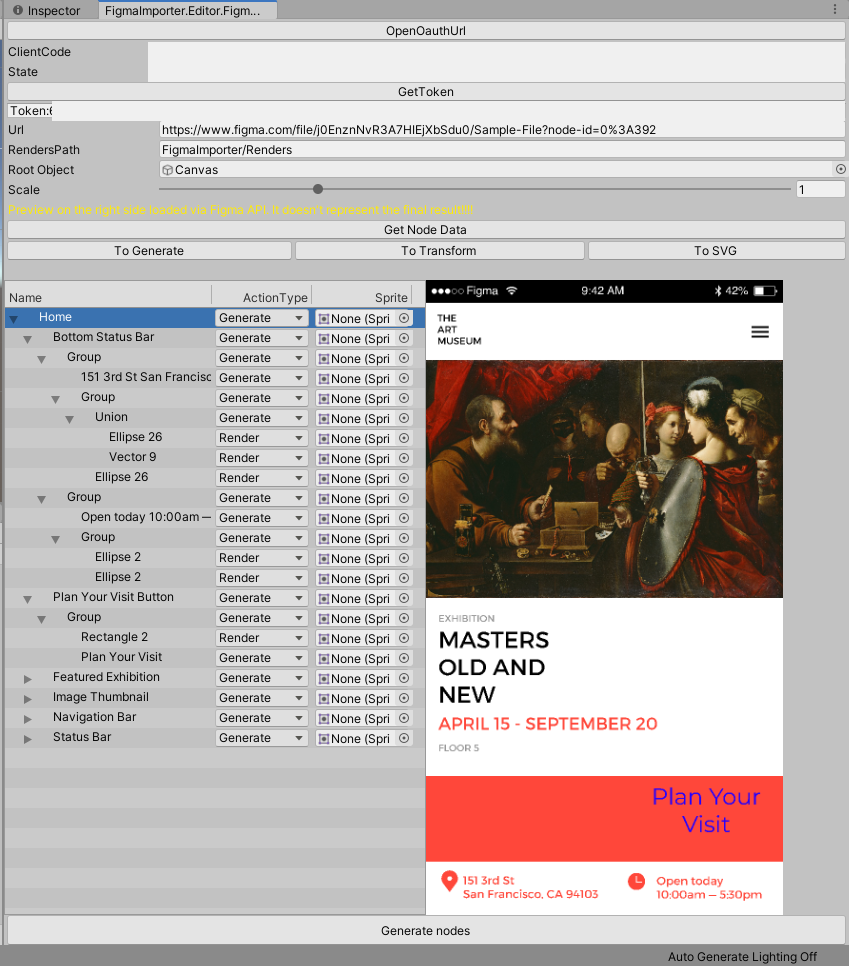
The loaded node tree. Each row has an ActionType and an optional Sprite override; the panel on the right is a preview fetched from the Figma API, not the result.
- Adjust actions if needed, then press Generate nodes.
Actions
| Action | What it does |
|---|---|
| Generate | Builds the node with uGUI components. The default for containers and text. |
| Render | Requests a rasterised image of the node from the Figma API and uses that instead. |
| Transform | Only applies position and size to an already generated object. |
| None | Skips the node entirely. |
| Svg Render | Loads the node as SVG. Only available with the Vector Graphics package installed. |
Three buttons set actions in bulk:
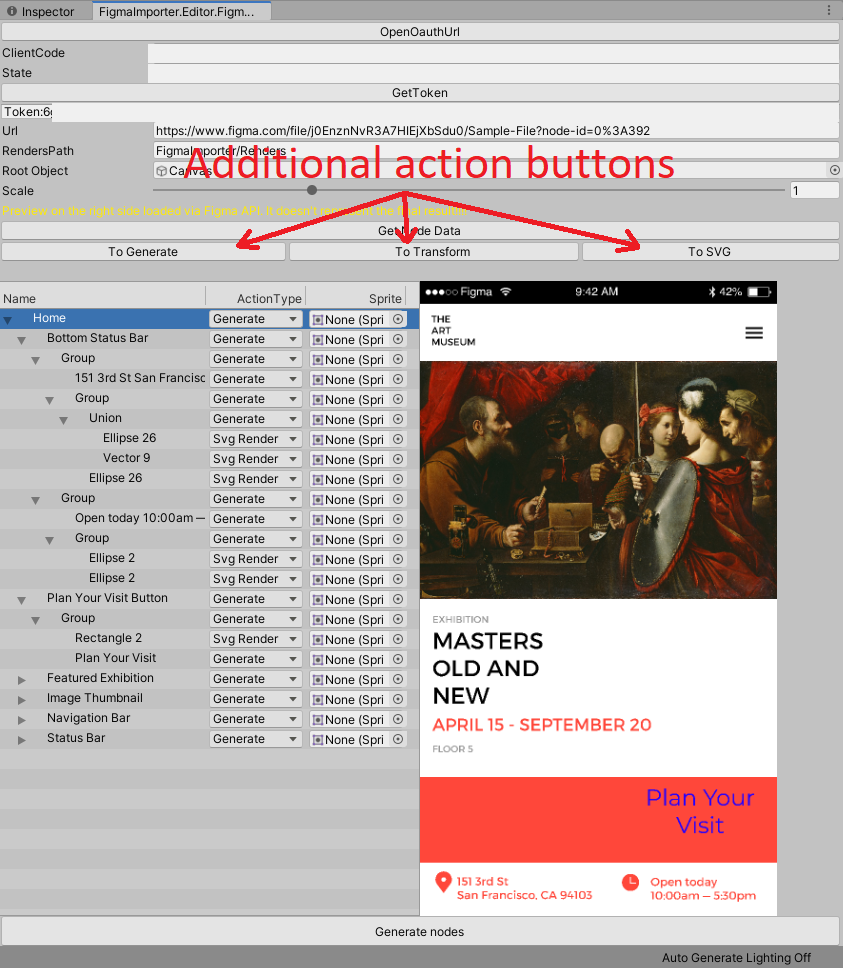
- To Generate — the default pass: rasterise leaf shapes, generate containers and text.
- To Transform — set every node to Transform, useful when reapplying changes to an existing hierarchy.
- To SVG — load everything possible as SVG.
The result lands under the Canvas you assigned:
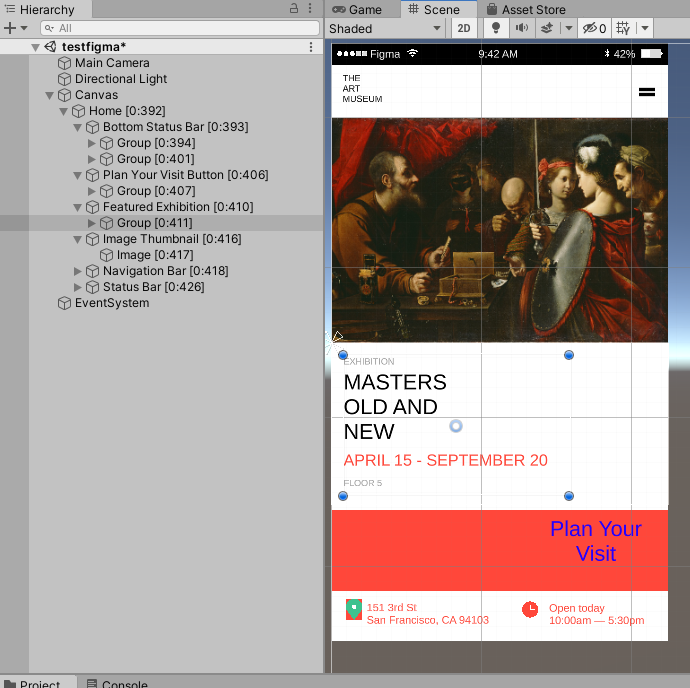
Generated objects carry their Figma id in square brackets, like Home [0:392].
Re-importing onto an existing hierarchy
Assign a previously generated object as Root Object instead of the Canvas, and the importer updates it in place rather than creating a second copy. Objects are matched by the Figma id in their name — the [0:392] suffix — so don't strip it if you plan to re-import.
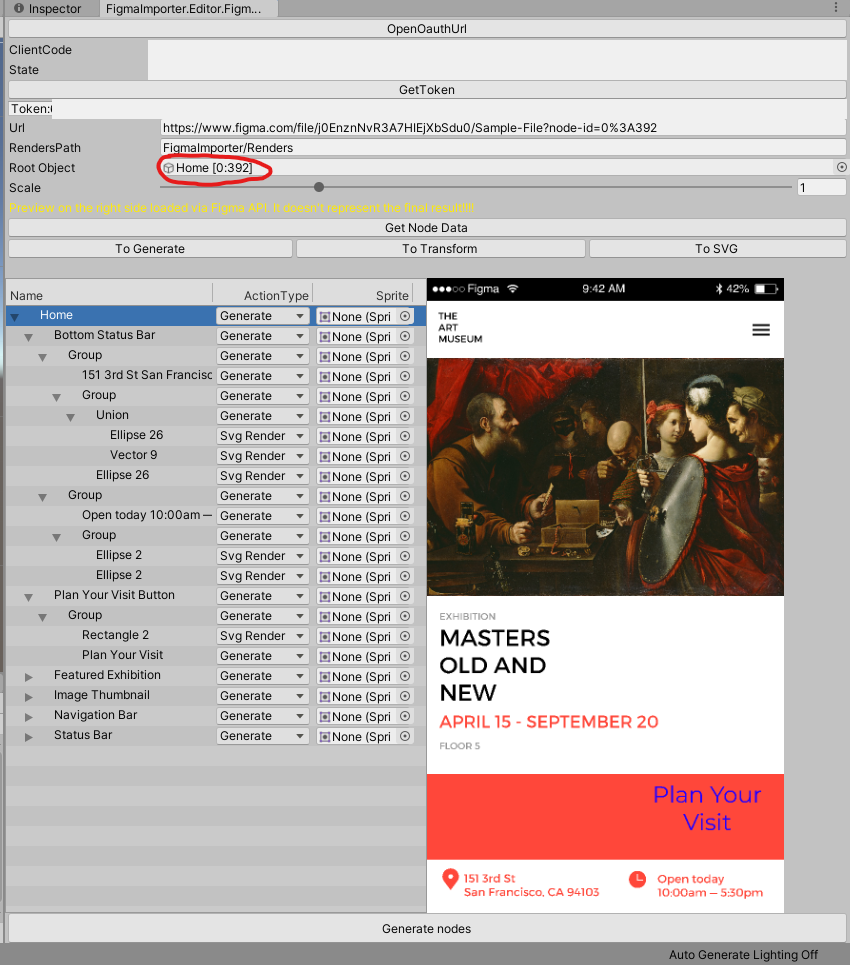
Setting a generated object as Root Object applies changes to it instead of building a new hierarchy.
Scale
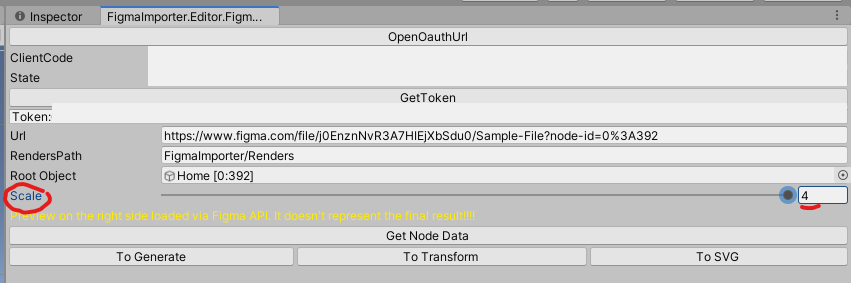
The Scale slider controls the resolution of generated objects and rasterised images, from 0.01 up to 4. Four is a hard ceiling — the Figma API will not return a render at a larger scale.
Fonts
Fonts are resolved through a FontLinks asset, created via Assets > Create > FigmaImporter/FontLinks. If import fails with a font error, add the missing font there and map it to the name Figma uses.
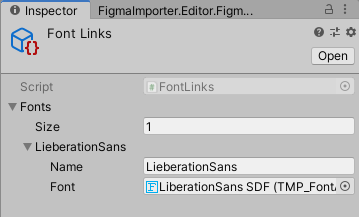
FontLinks maps Figma font names to Unity font assets.
Troubleshooting
- No token after GetToken: the ClientCode and State are single-use and short-lived. Press OpenOauthUrl again and redo the authorisation with fresh values.
- Font error during import: add the font to the FontLinks asset under the exact name used in the Figma file.
- Svg Render missing from the action list: install Unity's Vector Graphics package; the option is compiled out when it is absent.
- Re-import creates a duplicate instead of updating: check that the object names still contain their
[id]suffix and that the existing object is set as Root Object. - A node imports as a flat image: not everything in Figma has a uGUI equivalent — effects, masks, and complex vector shapes fall back to Render by design.
Requirements
- Unity 2019.4 or later
- TextMeshPro
- Unity Vector Graphics package (optional, for SVG)
- A Figma account
Support
Issues and pull requests: github.com/ManakhovN/FigmaToUnityImporter/issues. For anything else: nadirmanakhov@gmail.com
Related Tools: Command Line | Data Structures Editor | Files Converter | VCS Client