Data Structures Editor
Visual inspectors for JSON, XML, YAML, CSV, Markdown, and text files with in-Inspector editing, validation, and conversion.
Get it on the Unity Asset Store: Data Structures Editor — XML, JSON, YAML, CSV, MD
Overview
- Open any supported text data asset and edit directly in the Inspector
- Consistent UI for all formats with color-coded tokens
- Export between JSON / XML / YAML with one click
- Dark/Light theme aware; optimized for large files with caching
Key Features (Detailed)
- Multi-format inspectors:
.json,.xml,.yaml,.csv,.md,.txtwith schema-aware rendering. - Inline Editing & Validation: Immediate feedback on structure and syntax; a file that fails to parse falls back to the plain-text inspector with an error message.
- One-click Export: Convert JSON ⇄ XML ⇄ YAML without leaving Unity.
- Arrays & Objects: Add, remove, rename, and reorder entries, with undo and redo on Ctrl+Z / Ctrl+Y (Cmd on macOS). History is per file and holds the last 50 operations.
- Tables for CSV: Paged grid editing with Add Row, Add Column, and auto-fit columns.
- Markdown Preview: Rendered Markdown preview with cached parsing.
How to Use
- Select a supported file in the Project window.
- Edit values directly in the Inspector; changes are tracked.
- Click Save to persist or Reload to discard.
- Use Export to change format (JSON/XML/YAML) and save to a new asset.
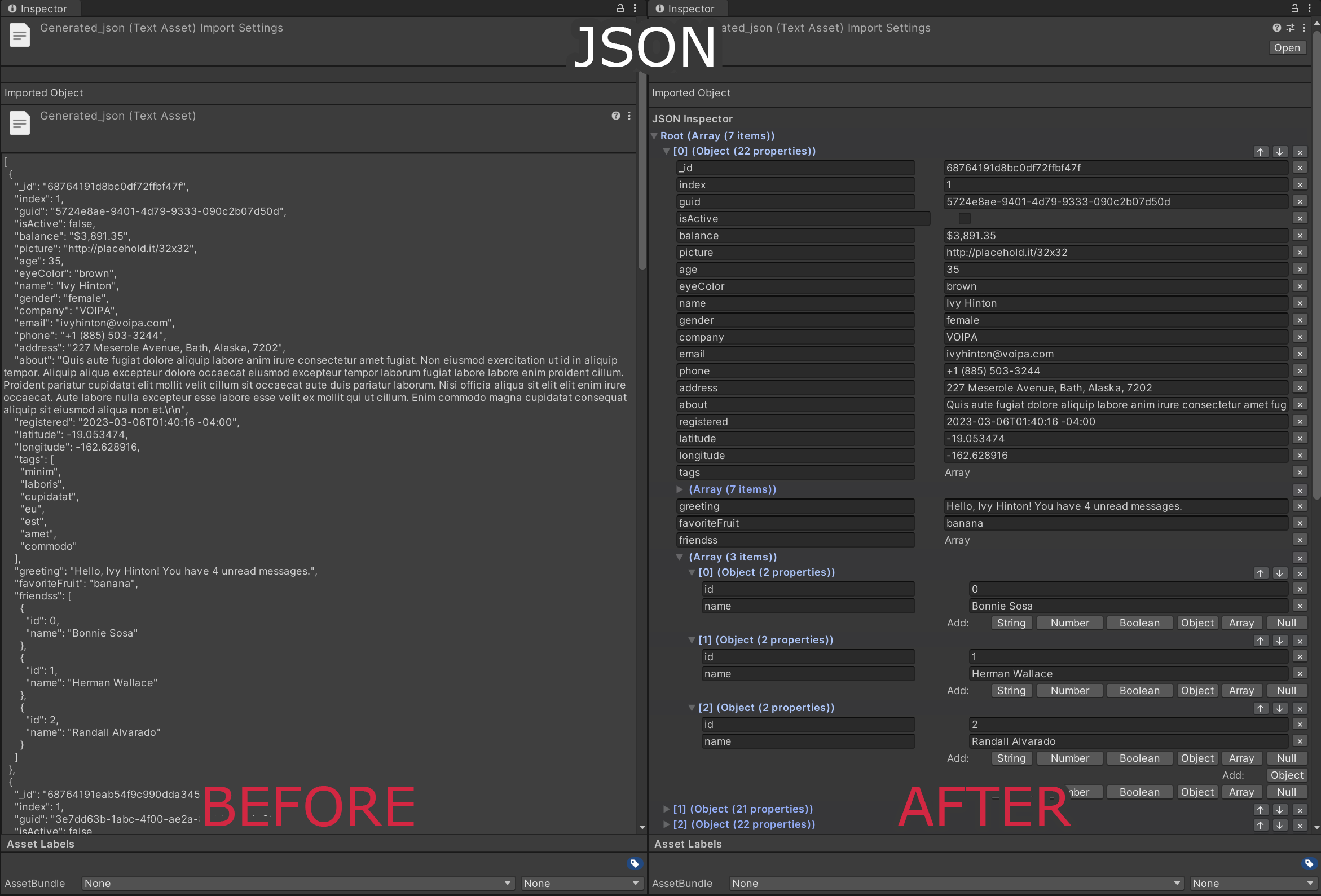
The same JSON asset before and after: raw text on the left, the visual editor on the right.
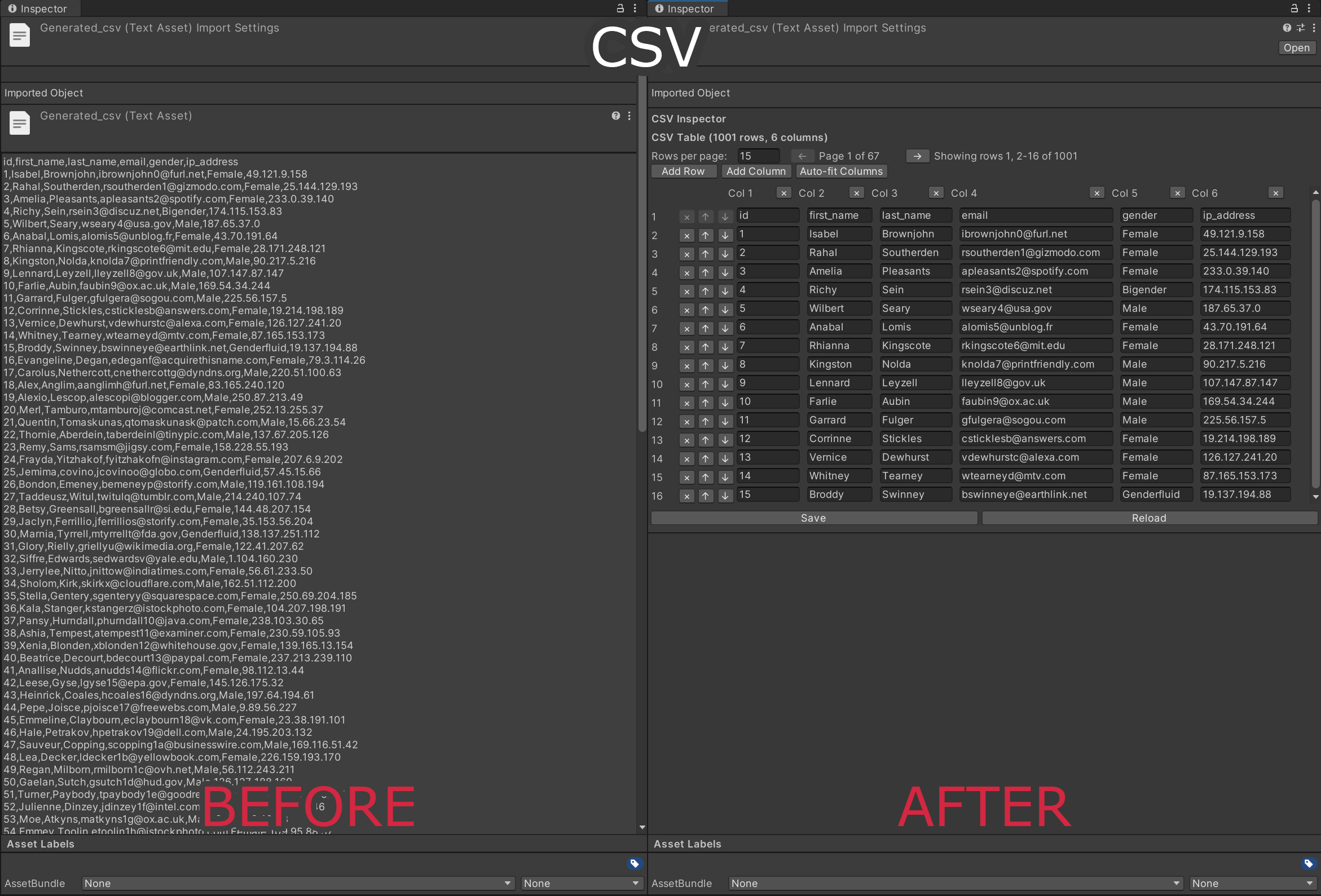
CSV assets open as a paged table with Add Row / Add Column and auto-fit columns.
Typical Workflows
- JSON/YAML editing: Fix configs, tweak gameplay data, adjust localization entries.
- CSV tables: Edit comma-separated data tables page by page; the first row is treated as the header.
- Markdown: Update docs or notes with preview for quick checks.
Architecture
- GeneralTextAssetEditor: The
TextAsseteditor that picks an inspector by file extension and falls back toSimpleTextInspectorwhen parsing fails. - IDataInspector: Contract for per-format inspectors —
JsonInspector,XmlInspector,YamlInspector,CSVInspector,MarkdownInspector,SimpleTextInspector. - UnifiedFormatInspector / UnifiedValueToken: Common tree representation shared by the JSON, XML, and YAML inspectors.
- Exporters:
JsonExporter,XmlExporter, andYamlExporterbehindIDataExporter, driven byDataExportService. - CommandManager: Command-pattern edit history (add / remove / rename / move / change value) providing the per-file undo and redo stacks.
- Caching:
MarkdownCacheand token caches to speed up large files.
Settings & Controls
- Save: Persist edits to disk.
- Reload: Discard unsaved changes.
- Export Format + Export As…: Choose a target format (JSON / XML / YAML) and write the result to a new asset.
- CSV: Rows per page (15 by default) with page navigation, plus Add Row, Add Column, and Auto-fit Columns. The delimiter is a comma and the first row is the header — neither is configurable.
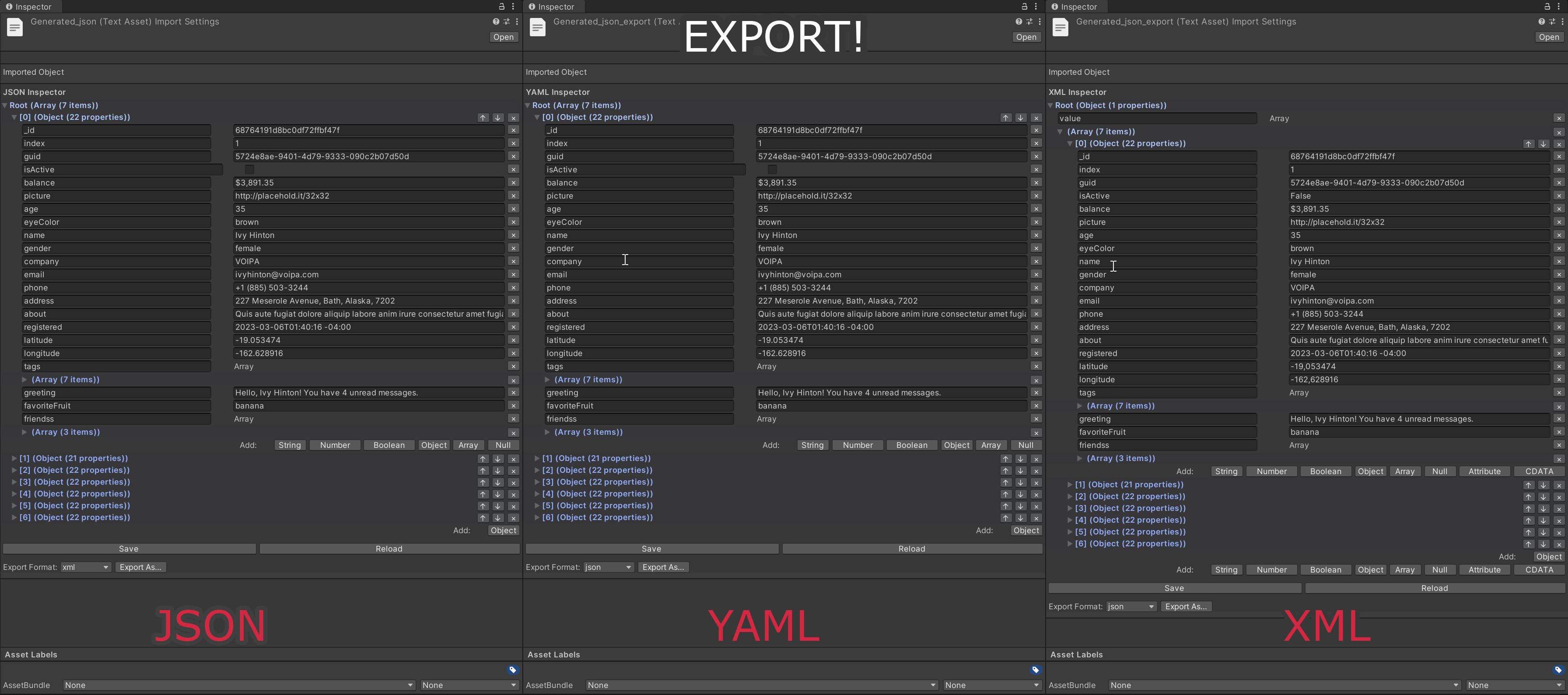
The same asset exported through Export Format → Export As…: JSON, YAML, and XML.
Tips & Best Practices
- Keep backups for critical data files.
- Validate after conversions; complex nested data may need manual review.
- Use Reload if you experiment and want to revert quickly.
- Prefer UTF-8 encoding for best compatibility.
Troubleshooting
- Plain text instead of the visual editor: Either the extension is not one of
.json,.xml,.yaml,.csv,.md,.txt, or the file failed to parse — the inspector then falls back to plain text and shows the parse error. Note that.ymlis not recognised; rename such files to.yaml. - File not opening: Check file type and encoding.
- Export fails: Verify permissions and available disk space; check target path.
- Broken structure after conversion: Review complex nested objects; re-validate keys and arrays.
Requirements
- Unity Editor 2020.3 or later
- Editor-only (no runtime impact)
Support
For issues or feature requests, contact: nadirmanakhov@gmail.com
Related Tools: Command Line | Subtitles Tool | Files Converter | VCS Client